# Helvia Release 5.37.0
### 1. Console Updates
#### 1.1 Enhanced Survey records
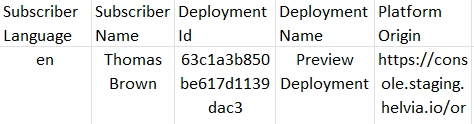
The export feature for survey records has been updated to display relevant user information from the session, such as the user's name and Deployment ID.
As an example, the below columns will be added to a survey's export:
#### 1.2 New bot creation through the Console
Admins will be able to create a new chatbot in the Helvia Console, with the option to use one of the available templates.
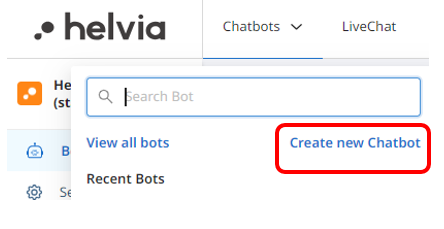
To create a new bot, click the 'Chatbots' drop down menu from the top left and click the 'Create new Chatbot' button. You can also do so through the 'View all bots' table.
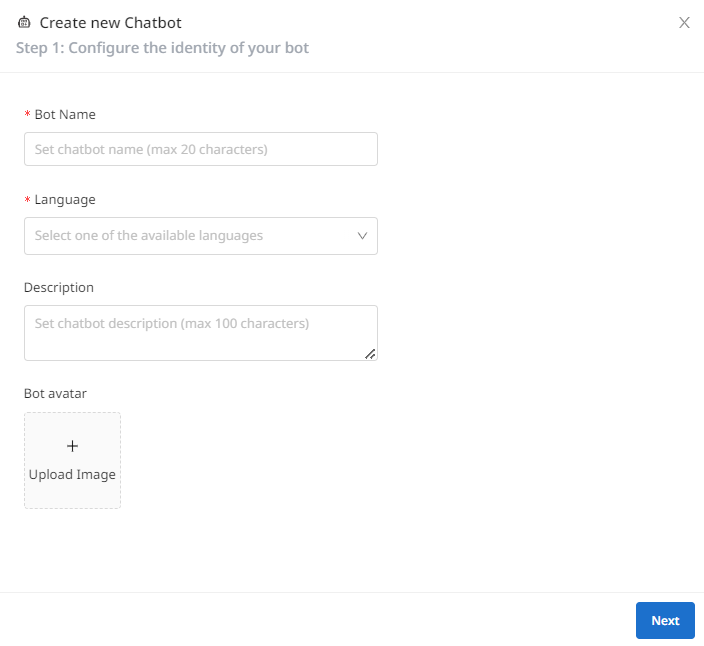
In the pop up screen, fill out the Bot Name, select the language, add a description, upload a bot avatar image and click 'Next'.
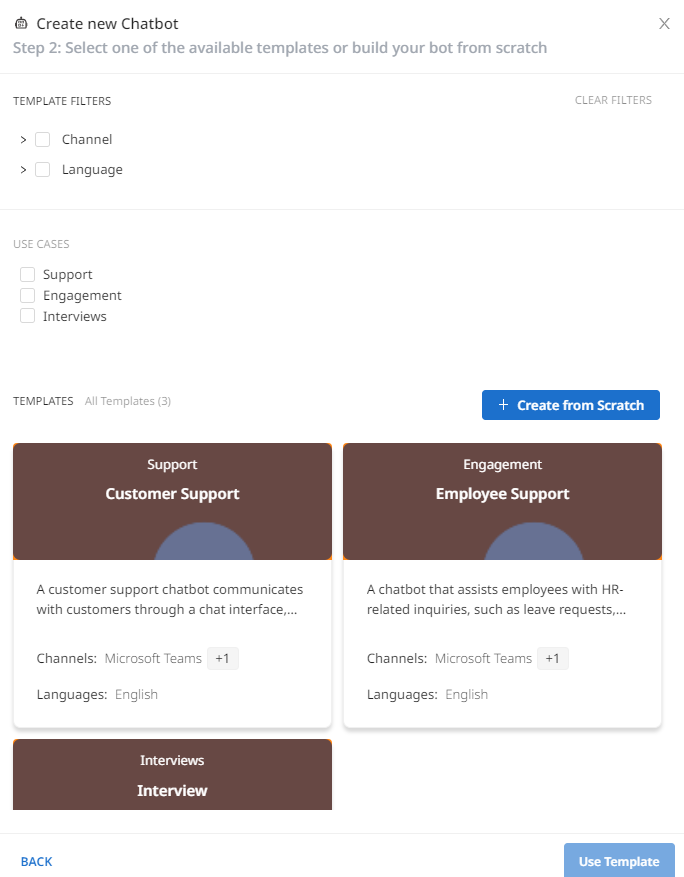
In the next screen, select one of the available templates or the 'Create from Scratch' button.
Once your bot is created, you can start making changes to the bot's settings, behavior and powerups and create deployments.
{% hint style="warning" %}
For setting up an NLU model or for custom settings for new bots, please get in touch with the Helvia team.
{% endhint %}
#### 1.3 Automated Answers Knowledge Base integration updates
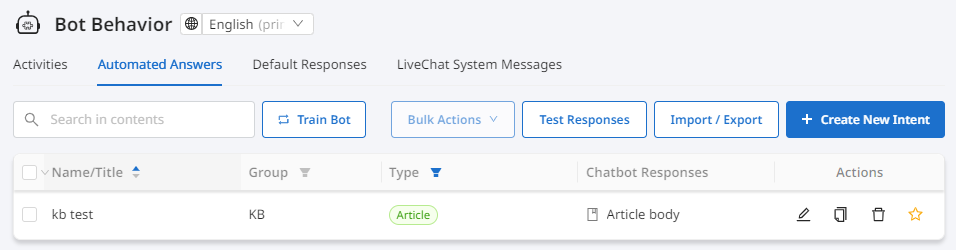
Chatbot content that is available through integration with an external Knowledge Base (i.e. Microsoft Dynamics), will be viewable through the Console. To support this, a new column has been added within the Automated Answers tab, indicating the type of the Automated Answer. The type 'Article' denotes an automated answer that has been imported as a result of an integration with a Knowledge Base. Type 'Intent' indicates an automated answer built within the Helvia Console.
Chatbot editors will be able to view, make specific edits or delete articles directly through the Console, but will not be able to import Knowledge Base articles directly.
The below actions will become available for Knowledge Base articles through the Console:
* Deleting an article
* Adding messages before or after the article and redirects after the article
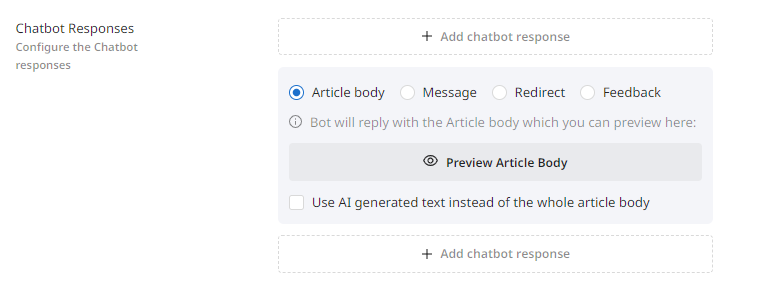
* Configuring if the chatbot will respond with the whole article or use AI to generate a response based on the article
### 2. LiveChat Updates
#### 2.1 Option to leave an active LiveChat conversation
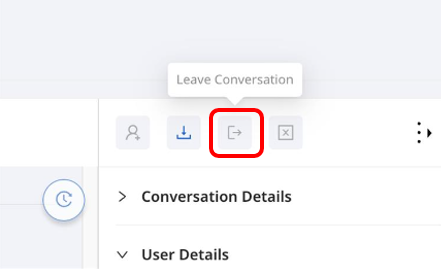
LiveChat agents who have joined a LiveChat conversation, will now have the option to leave it, if there is at least one more agent in the conversation.
{% hint style="info" %}
If there is only one agent, or if the conversation owner attempts to leave, the 'Leave' button will be inactive and not clickable.
{% endhint %}
#### 2.2 Excluding thumbs feedback in LiveChat system messages
When setting thumbs feedback for the chatbot through the configuration settings, the feedback will apply to all messages sent by the bot, excluding the LiveChat system messages.
---
# Agent Instructions: Querying This Documentation
If you need additional information that is not directly available in this page, you can query the documentation dynamically by asking a question.
Perform an HTTP GET request on the current page URL with the `ask` query parameter:
```
GET https://docs.helvia.ai/resources/release-notes/2023/helvia-release-5.37.0.md?ask=
```
The question should be specific, self-contained, and written in natural language.
The response will contain a direct answer to the question and relevant excerpts and sources from the documentation.
Use this mechanism when the answer is not explicitly present in the current page, you need clarification or additional context, or you want to retrieve related documentation sections.