# Helvia Release 5.35.0
### 1. Console Updates
#### 1.1 'Channel Action' node for Unity deployments
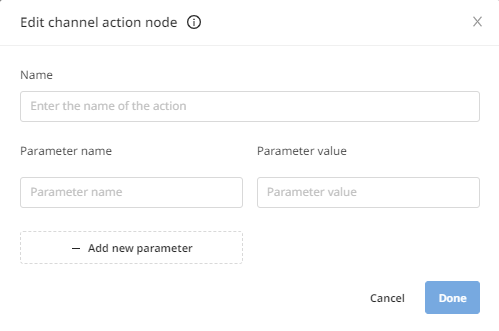
A new node called 'Channel Action' is now available, which can be used before or after a 'Message' node, to send an action or a list of actions to the deployment platform for execution at the client side. This is now currently available for Unity deployments only.
To add the 'Channel Action' node, select it from the list and fill out the required fields.
#### 1.2 Variable color
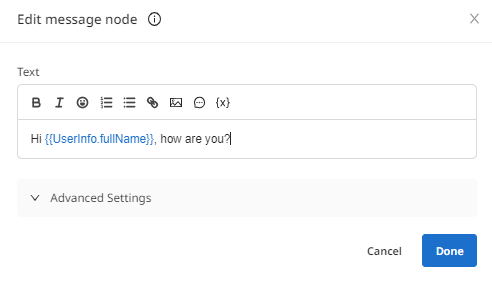
When a variable is added within a node, it will be displayed in blue for better UX.
#### 1.3 Rename of the 'Train NLU' button to 'Train Bot'
The 'Train NLU' button within the Automated Answers page has been renamed to 'Train Bot' for ease. To ensure that the bot is trained with the latest updates, this button needs to be clicked every time changes are made to the Automated Answers.
Once the bot is trained, the button name changes automatically to 'NLU ready' and the button becomes unclickable.
### 2. LiveChat Updates
#### 2.1 'Send message' configuration
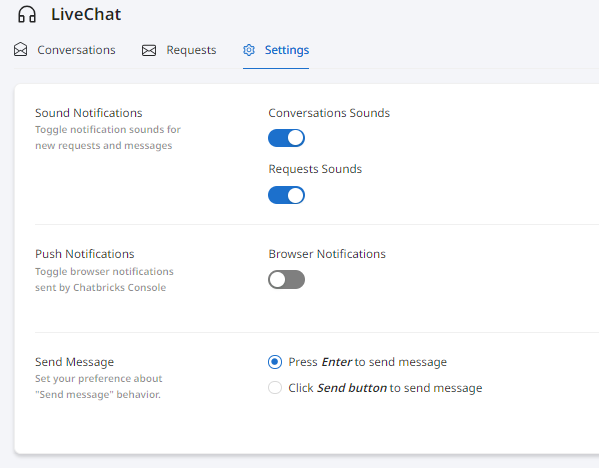
A new setting is available for LiveChat agents, giving them the option to configure the trigger for sending a message, i.e. send a message by pressing the 'Enter' button or by clicking the 'Send' button.
The default behavior is to send the message by pressing 'Enter'. To change this setting, go to the 'Settings' tab within the LiveChat app and select the option "Click ***Send button*** to send message". With this option, you can use the 'Send' button or press ctrl/cmd + Enter simultaneously to send the message. Also, pressing 'Enter' will start a new line in the message you are typing, instead of sending the message.
#### 2.2 Rename of 'Predefined Actions' to 'Automations'
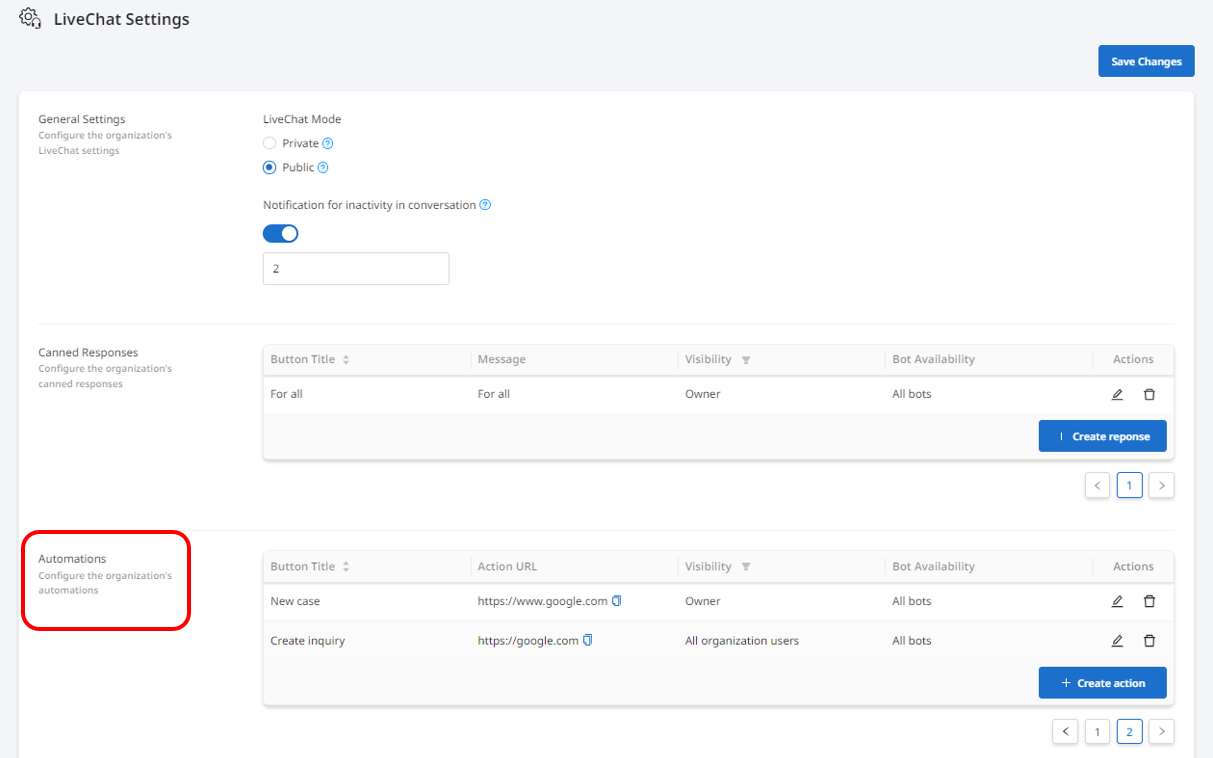
'Predefined Actions' have been renamed 'Automations' in the LiveChat app.
#### 2.3 Automations (Predefined Actions ) on finished conversations
LiveChat agents will have the ability to execute Automations, such as creating a ticket, not only during, but also after a conversation has ended.
---
# Agent Instructions: Querying This Documentation
If you need additional information that is not directly available in this page, you can query the documentation dynamically by asking a question.
Perform an HTTP GET request on the current page URL with the `ask` query parameter:
```
GET https://docs.helvia.ai/resources/release-notes/2023/helvia-release-5.35.0.md?ask=
```
The question should be specific, self-contained, and written in natural language.
The response will contain a direct answer to the question and relevant excerpts and sources from the documentation.
Use this mechanism when the answer is not explicitly present in the current page, you need clarification or additional context, or you want to retrieve related documentation sections.