# Helvia Release 5.34.0
### 1. Console Updates
#### 1.1 Creating a new organization
Admins will now have the option to create a new organization within the Helvia Console. This is particularly useful if you are working on different projects with different organization needs.
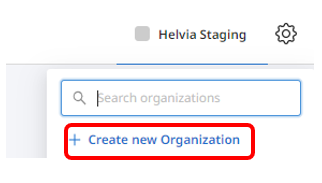
To create a new organization, click on the organization name on the top right corner and then click the '+ Create new Organization' button.
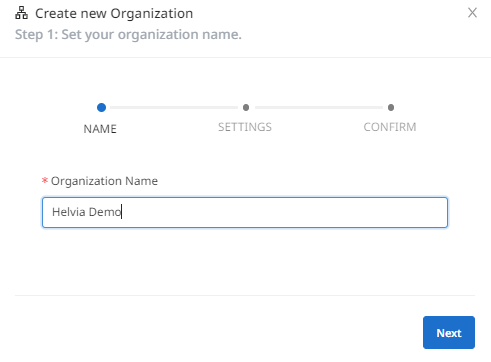
In the pop-up window, add the organization name and click 'Next'.
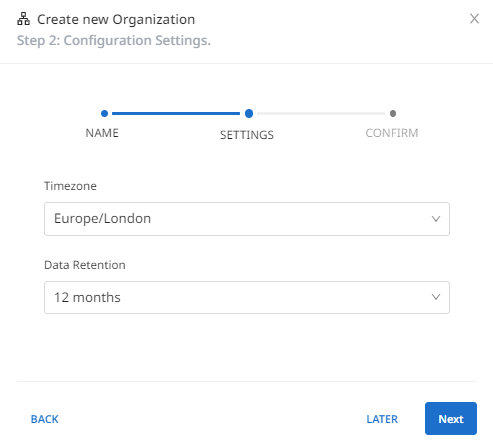
In the settings, configure the timezone and the data retention period and click 'Next'.
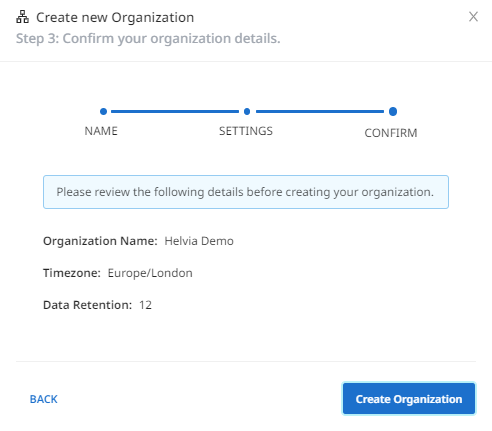
Review the details and if everything is correct, click 'Create Organization'. If you have any changes to make, click the 'Back' button to navigate to the settings or to the name and then proceed to the next steps to create the organization.
Once you click the 'Create Organization' button, you will be navigated to the new organization you have created. You can select to navigate to another organization you are a member of by clicking on the organization on the top right corner and selecting one from the drop down menu.
{% hint style="info" %}
Note: A Microsoft Teams organization can only be connected to one Helvia LiveChat app. If you have bots that need to be connected to Helvia's LiveChat app through your Microsoft Teams organization, they should belong to the same organization in the Helvia Console.
{% endhint %}
#### 1.2 Personalization with system variables
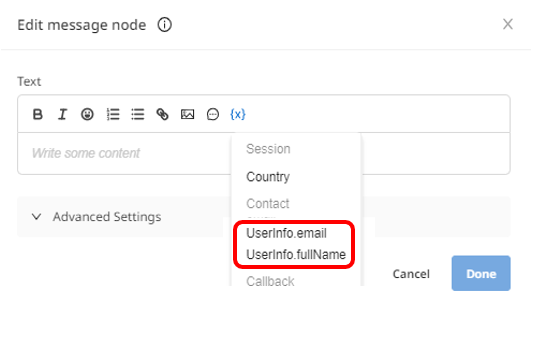
System variables ('email' and 'fullname') are now available in all activities and automated answers. You can use these variable as placeholders in order to display to a logged-in end-user personalized information (e.g. "Hello {{UserInfo.fullName}}", would be displayed as "Hello John Smith" to the logged in end-user John Smith).
To add a system variable within an activity or automated answer, click on the variable icon {x} and select 'email' and/or 'fullname'.
#### 1.3 Unity deployment
A new deployment is now available for Unity developers, who would like to to integrate Unity with the Helvia Console.
### 2. LiveChat Updates
#### 2.1 LiveChat agent view
Users who only have the role of LiveChat Agent will now be redirected to the LiveChat page within the console, after logging in.
#### 2.2 Editing predefined actions
LiveChat agents and admins will be able to edit predefined actions in the right sidebar, when clicking on the 'Edit' button of a predefined action.
---
# Agent Instructions: Querying This Documentation
If you need additional information that is not directly available in this page, you can query the documentation dynamically by asking a question.
Perform an HTTP GET request on the current page URL with the `ask` query parameter:
```
GET https://docs.helvia.ai/resources/release-notes/2023/helvia-release-5.34.0.md?ask=
```
The question should be specific, self-contained, and written in natural language.
The response will contain a direct answer to the question and relevant excerpts and sources from the documentation.
Use this mechanism when the answer is not explicitly present in the current page, you need clarification or additional context, or you want to retrieve related documentation sections.