# Helvia Release 5.33.0
### 1. Console Updates
#### 1.1 Thumb Rating setting in 'Message' node and Automated Answers
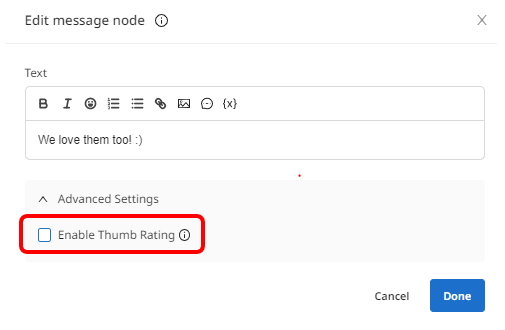
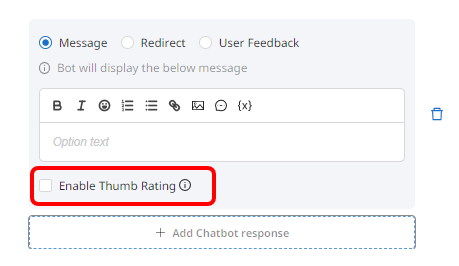
A Thumb Rating setting is now available in activities' 'Message' nodes and in the Automated Answers.
To add configure the Thumb Rating in the Message node, go to the node's Advanced Settings and check or uncheck the 'Enable Thumb Rating' checkbox.
Similarly, in the response of an Automated Answer, check or uncheck the 'Enable Thumb Rating' checkbox.
{% hint style="info" %}
Note: This action will overwrite the default bot setting for this feature.
{% endhint %}
#### 1.2 Simplified 'Flow control' node configuration
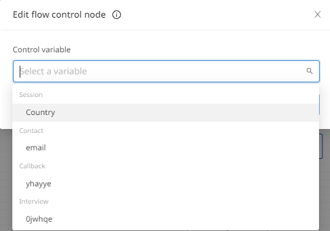
The 'Flow control' node now has a simpler UI, allowing the bot author to select any variable from a single dropdown menu.
#### 1.3 Conversation variables in bot behavior
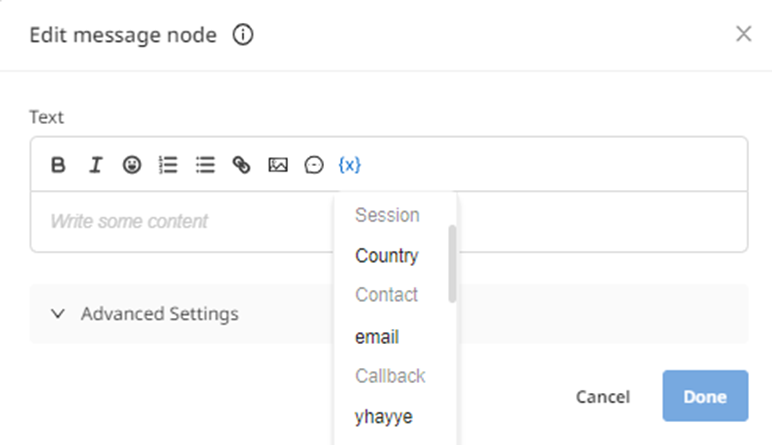
Conversation variables are now available in all activities and automated answers. To add a variable within an activity or automated answer, click on the variable icon {x} and select from the list of available variables. You can choose among Session, Contact or Callback variables.
{% hint style="info" %}
Note: You can create a variable with the 'Variable' node. More information is available [here](https://docs.helvia.io/chatbricks-release-notes/helvia-release-5.30.0#4.-variable-node).
{% endhint %}
#### 1.4 Relative dates in console tables date pickers
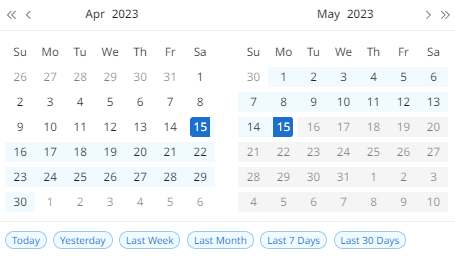
All tables that include date filtering within the console, will now also include the option to select based on relative dates, e.g last 30 days.
#### 1.5 GPT-3.5 Turbo and GPT-4 in NLU model configuration
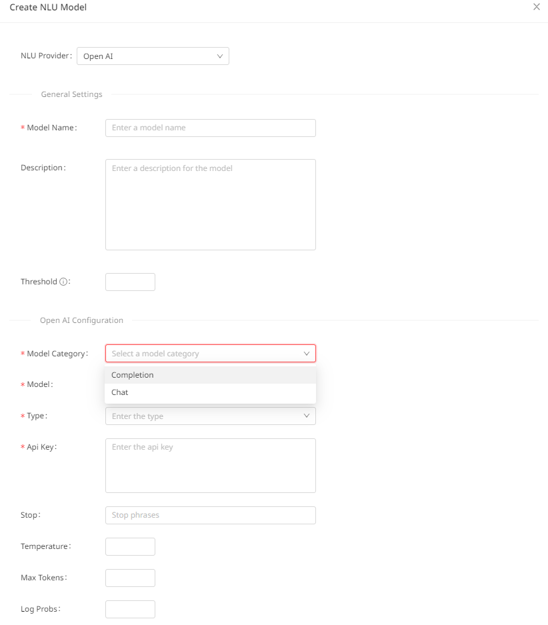
When configuring an OpenAI NLU model through the console from the bot's NLU Settings, there are now two options for the model category:
* OpenAI completion
* OpenAI chat
On the 'Model' you can add the name of the NLU model.
In addition, the 'Few shot' option is now available under 'Type'. When selected, it is defined by the parameter 'Examples' to determine how many intents will be used for the detection.
####
### 2. LiveChat Updates
#### 2.1 LiveChat UX enhancements
The LiveChat console has been enhanced with the following updates to provide a better user experience.
**2.1.1 User Details and CRM integration**
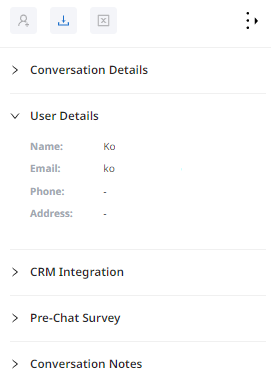
The User Details section has been moved under the Conversation Details section of the sidebar and is always open. Underneath the User Details, there is the CRM Integration.
**2.1.2 Default view of the sidebar**
The right sidebar default view is the expanded view.
**2.1.3 Predefined Actions**
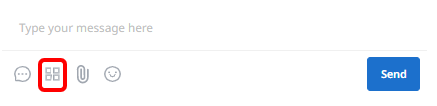
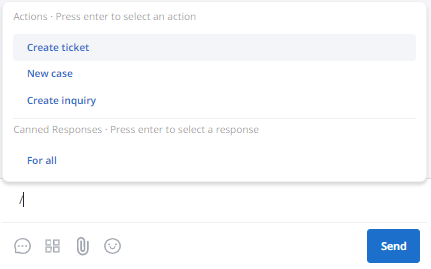
The Predefined Actions are now located next to the Canned Responses in the chat and can be triggered similarly to the Canned Responses.
By typing `/` , an agent can trigger Canned Responses and Predefined Actions. Both options are grouped in the list.
Predefined Actions are configured through the LiveChat settings page.
#### 2.2 Updated default message when there is an active live-chat conversation
When an end-user is opening the chat where there is already a live-chat conversation in progress, the default system message that shows up has been updated to:
“Hello! There is an active live-chat session currently in progress. Please feel free to continue your conversation with our live-chat agent. “
#### 2.3 Drop-down choice in predefined actions
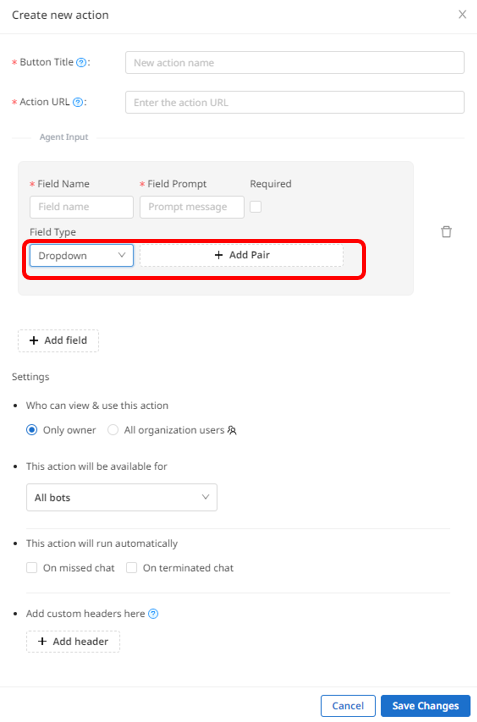
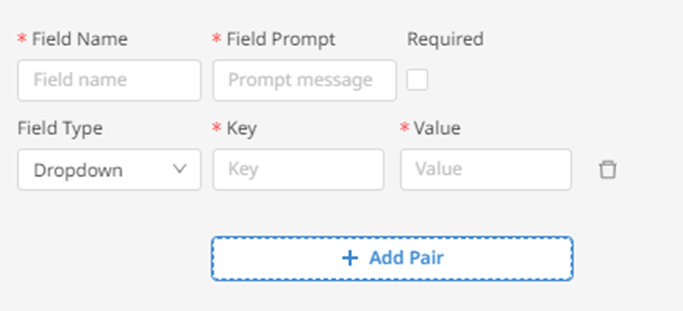
In the LiveChat action settings, there is now a new option to add agent input as drop-down and to also add pairs of key-value.
---
# Agent Instructions: Querying This Documentation
If you need additional information that is not directly available in this page, you can query the documentation dynamically by asking a question.
Perform an HTTP GET request on the current page URL with the `ask` query parameter:
```
GET https://docs.helvia.ai/resources/release-notes/2023/helvia-release-5.33.0.md?ask=
```
The question should be specific, self-contained, and written in natural language.
The response will contain a direct answer to the question and relevant excerpts and sources from the documentation.
Use this mechanism when the answer is not explicitly present in the current page, you need clarification or additional context, or you want to retrieve related documentation sections.