# Helvia Release 5.29.0
### 1. Console Updates
#### 1.1 Embedding Analytics graphs using iframe
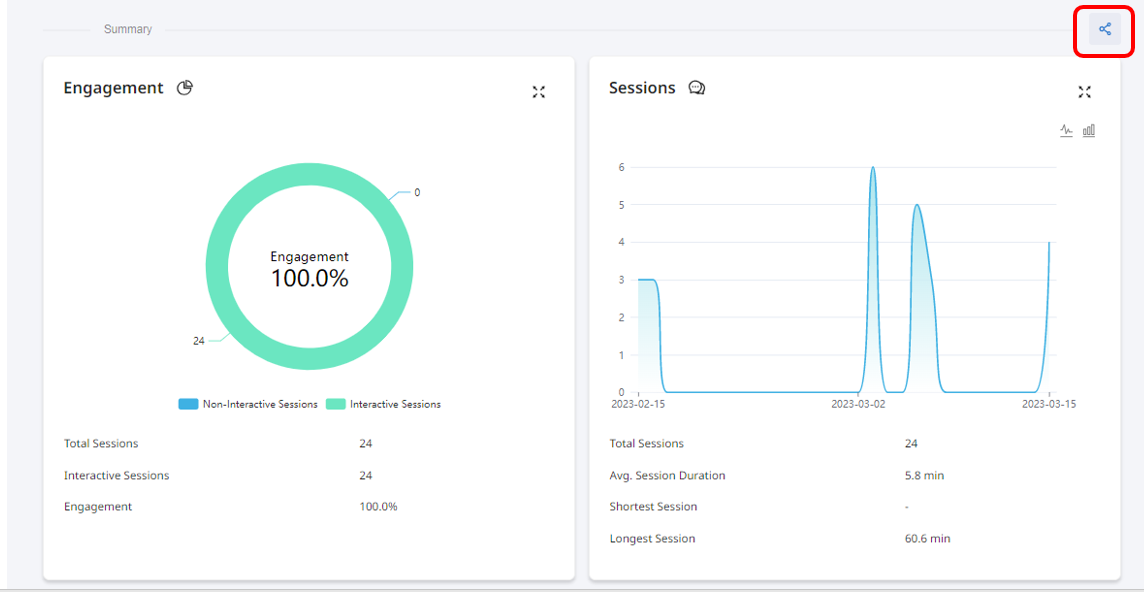
The sections available in Analytics include now a new 'Share' button, that provides the public URL of the section. This enables you to embed the graphs in external webpages through iframe.
To get the public URL of a section in Analytics, click on the 'Share' button.
A new window will pop up with the public URL. Click the button 'Copy URL' to add it to your iframe where you would like the graphs to show.

#### 1.2 Redesigned pages
Focusing on improving user experience and easier bot management, we have updated some additional pages in the Helvia console.
**1.2.1 Redesign of View All Bots page**
The View All Bots page now includes two more columns to provide all info per bot at a glance - Tags and Bot Availabiltiy. In the Tags column you can see any tags that are included in the bot. The Bot Availability Column shows whether a bot is enabled or disabled.
**1.2.2 Redesign of User Groups page**
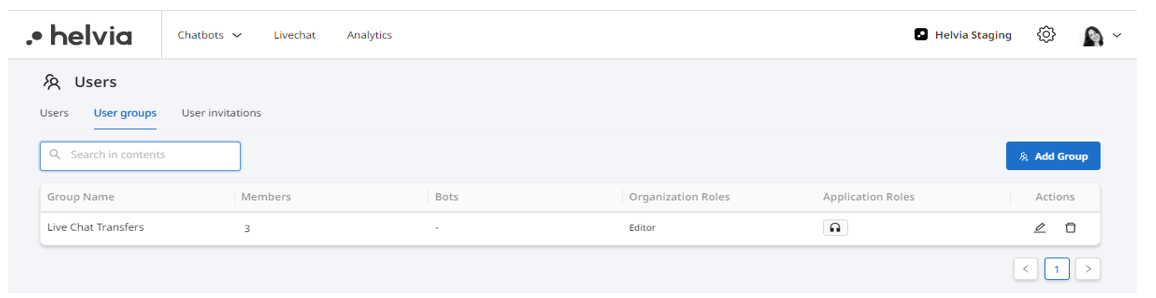
The User Groups page has renamed columns for more clarity. In addition, the application roles are represented with icons.
**1.2.3 Redesign of LiveChat system messages tab**
The LiveChat system messages tab has been updated with a new UI.
#### 1.3. Activities bulk cloning and deletion
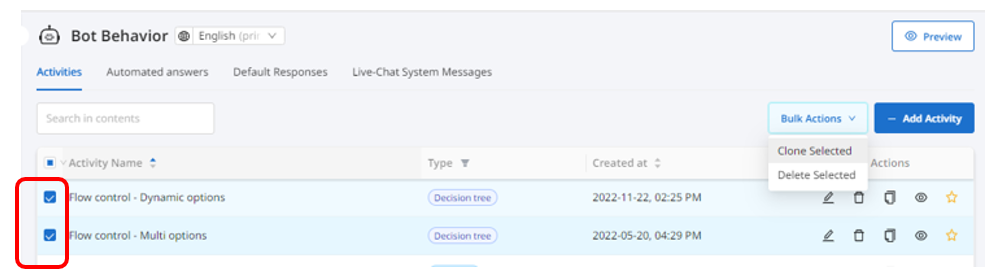
A bulk action is now available in the Activities page that enables you to select more than one Activities to clone or delete.
To clone a group of Activities, first check the check boxes on the left of the Activities you want to clone. Once selected, these Activities will be highlighted light blue. Click the 'Bulk Actions' button and select 'Clone Selected'.
A window will pop up asking you to choose from a drop down menu which bot you want to clone the selected Activities to.

To delete a group of Activities, first check the check boxes on the left of the activities you want to delete. Click the 'Bulk Actions' button and select 'Delete Selected'. A window will pop up, asking you to confirm you want to delete the selected items. Click 'Delete' to proceed with the deletion of the selected Activities.

#### 1.4. Automated Answers bulk cloning and deletion
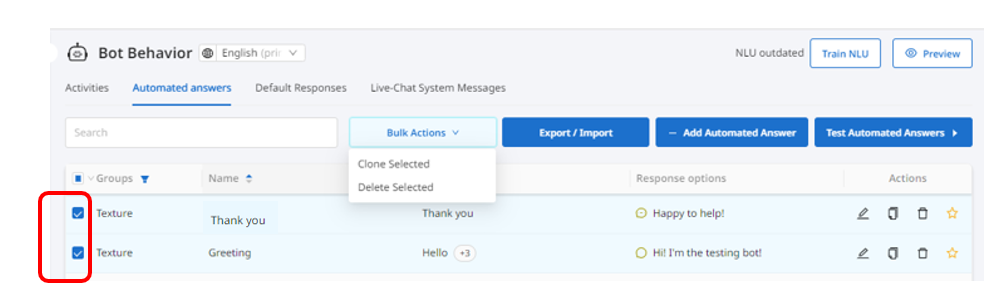
A bulk action is now available for Automated Answers, enabling you to clone or delete multiple Automated Answers at once.
To clone a group of Automated Answers, first check the check boxes on the left of the Automated Answers you want to clone. Once selected, these Automated Answers will be highlighted light blue. Click the 'Bulk Actions' button and select 'Clone Selected'.
A window will pop up asking you to choose from a drop down menu which bot you want to clone the selected Automated Answers to.

To delete a group of Automated Answers, first check the check boxes on the left of the Automated Answers you want to delete. Click the 'Bulk Actions' button and select 'Delete Selected'. A window will pop up, asking you to confirm you want to delete the selected items. Click 'Delete' to proceed with the deletion of the selected Automated Answers.

#### 1.5 Line break when testing Automated Answers
In the Test Automated Answers box, you will be able to add a new line by pressing the Shift and Enter keys of your keyboard together. When pressing Enter only, the test input gets submitted to the test form.

#### 1.6 NLU caching powerup
A new powerup, 'NLU Caching', has been added to the Powerups tab of the Bot Settings page, which allows you to enable and disable NLU caching per bot, as well as to empty the cache. NLU Caching improves bot response times by caching the outcome of NLU processing of incoming messages.
To add it to your bot, check the check box on the left of the 'NLU Caching' powerup and click 'Save Changes'.

Once added, a new setting will become available in the 'NLU Settings' tab of the Bot Settings page, which allows you to enable and disable the bot's NLU caching. When caching is enabled, you will also have the option to empty the cache with the 'Purge cache' button.

#### 1.7 Audit logs for user login/logout
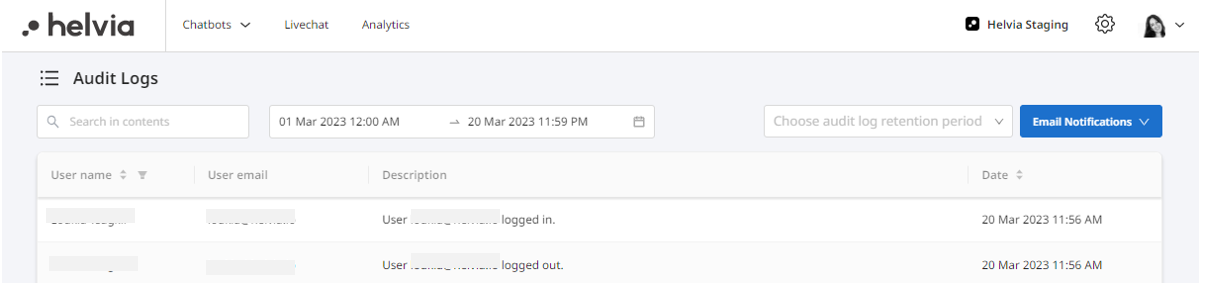
Organization admins will be able to see audit logs for user login/logout in the console. This information will become available in the 'Audit Logs' page.
#### 1.8 Flow layout feature
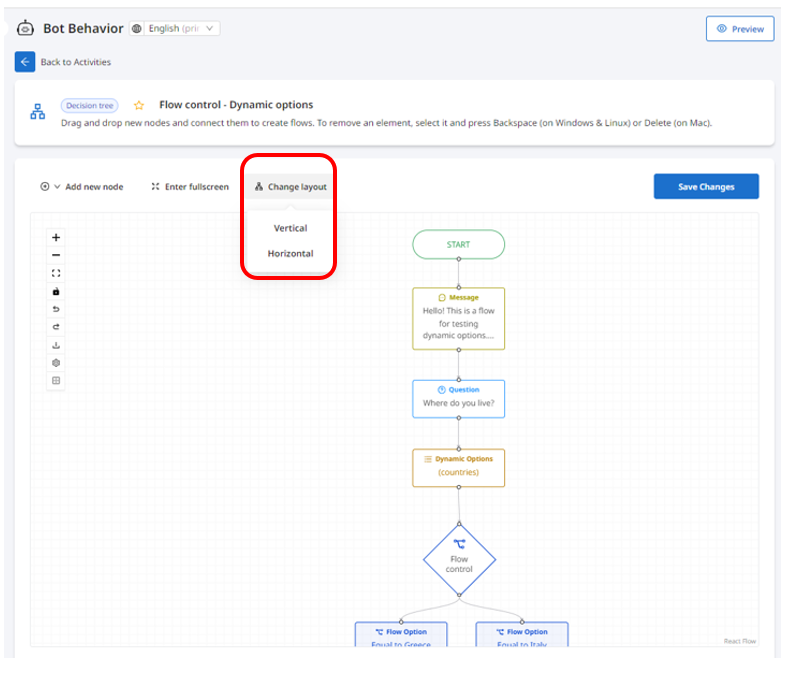
A new feature has been added to the flow editor, allowing you to change the flow layout. From the 'Change layout' dropdown, you can select your flow's preferred layout, i.e. horizontal or vertical.
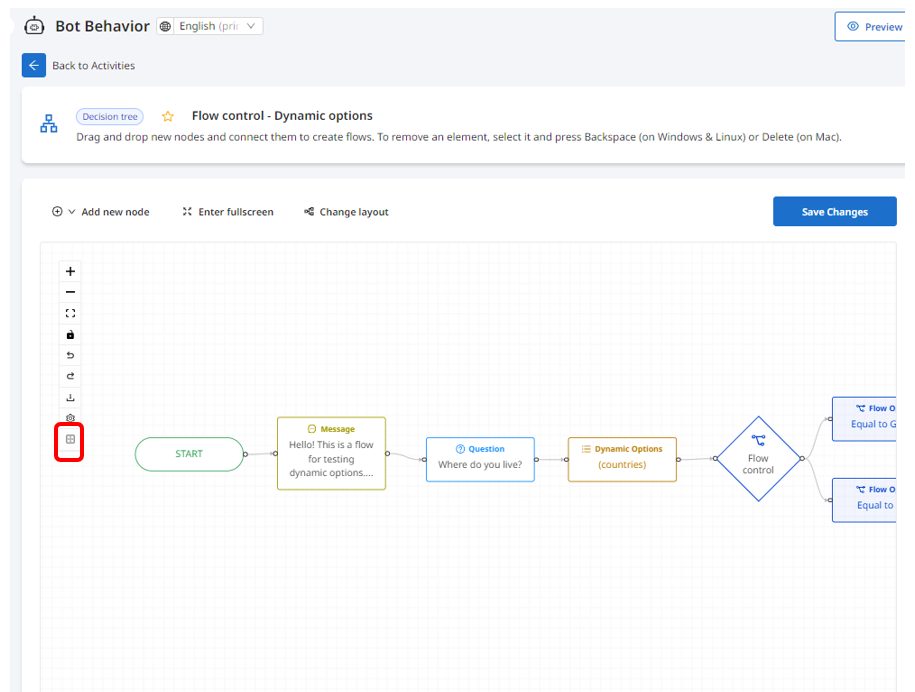
In addition, a new button is now also available that automatically arranges the nodes based on the layout selection.
### 2. LiveChat Updates
#### 2.1 Enhanced sound notifications
The LiveChat conversation sound notifications have been enhanced to provide better experience to the LiveChat agents. When turned on, the sound notification will be played in the below cases:
* When a new request comes through
* When a new message comes through and the agent is in another window
* When a new message comes through and the agent is in another page of the console
* When a new message comes through and the agent is in another chat
* When a new message comes through and the agent is in the same chat, but not the curson is not in the user input
#### 2.2 LiveChat queue configuration settings
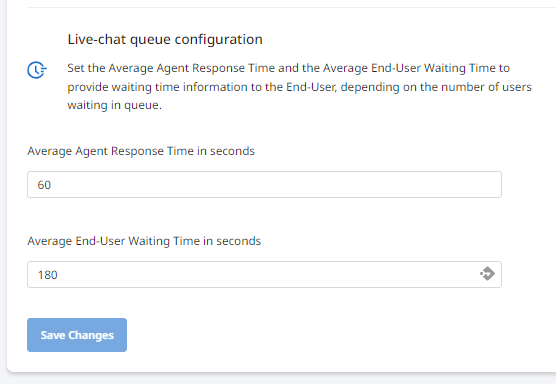
The 'LiveChat Settings now allow LiveChat admins to set the Average Agent Response Time and the Average End-User Waiting Time to provide waiting time information to the End-User, depending on the number of users waiting in queue.
To configure these settings, go to the 'LiveChat Settings' tab of the Bot Settings page and edit the Average Agent Response Time and the Average End-User Waiting Time.
---
# Agent Instructions: Querying This Documentation
If you need additional information that is not directly available in this page, you can query the documentation dynamically by asking a question.
Perform an HTTP GET request on the current page URL with the `ask` query parameter:
```
GET https://docs.helvia.ai/resources/release-notes/2023/helvia-release-5.29.0.md?ask=
```
The question should be specific, self-contained, and written in natural language.
The response will contain a direct answer to the question and relevant excerpts and sources from the documentation.
Use this mechanism when the answer is not explicitly present in the current page, you need clarification or additional context, or you want to retrieve related documentation sections.