# Helvia Release 5.26.0
### 1. **Console Updates**
#### **1.1 Media Library**
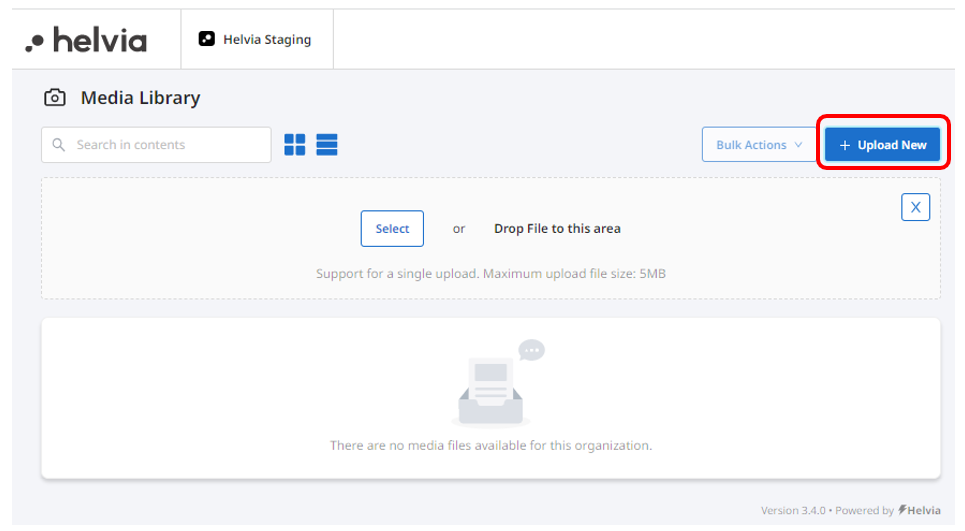
A Media Library is now available in the Helvia Console, where you can store and manage the files you want to use in your chatbots, including images and videos. In the Media Library you can upload new files, delete existing ones and copy the URLs of the files to use as required within the console.
To access the Media Library, click on the settings on the right hand side and select 'Media'.

To add a new file, click 'Upload New'. You will then be able to upload a file by clicking the 'Select' button or drop a file directly.
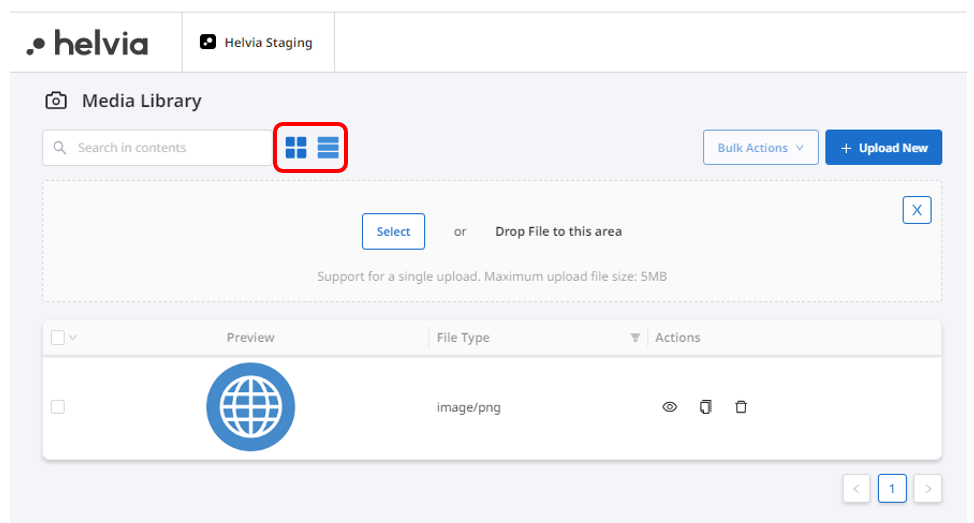
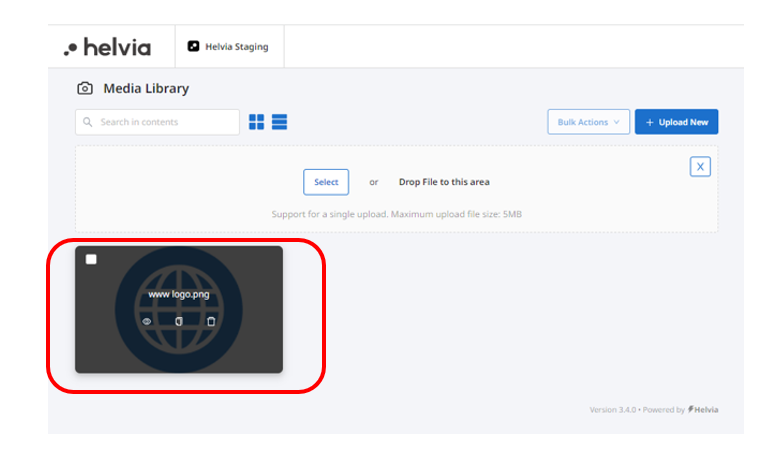
You can view the uploaded files as icons or in a list, by clicking the 'View' buttons.
To use the uploaded file, copy the URL by clicking the 'Copy' icon and paste it to the required location within the console. If you are in the icon view, hover over the file you want to copy, and click on the 'Copy' icon.
#### **1.2 Activity Analytics funnel updates**
The Activity Analytics have been enhanced to show the total number of times each message and intro node was triggered.
To access this view, go to the Organization Analytics, on the Decision Tree section and click the 'View' icon of a specific activity.

#### **1.3 Search bar in the Audit Logs page**
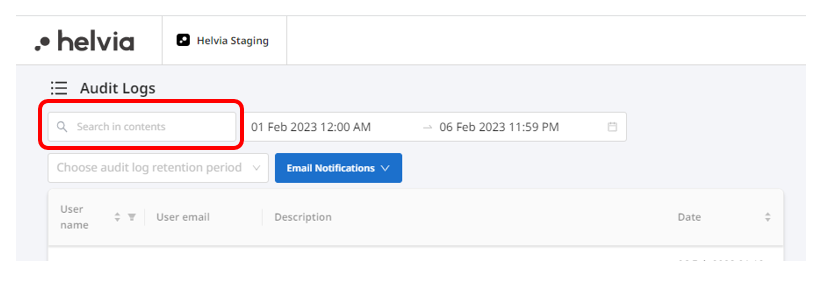
A search bar is now available in the Audit Logs page, allowing admins to search the logs by description.
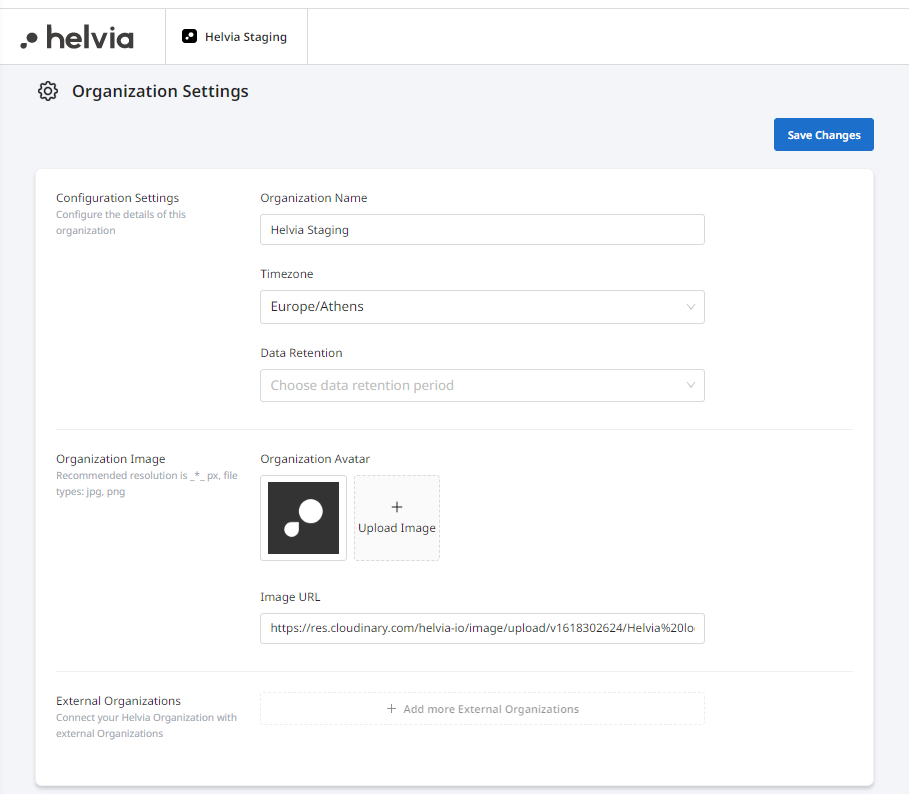
#### 1.4 Redesign of the Organization Settings page
The Organization Settings page has been redesigned to provide better UX. It also includes the option to upload an image directly to the Media Library.
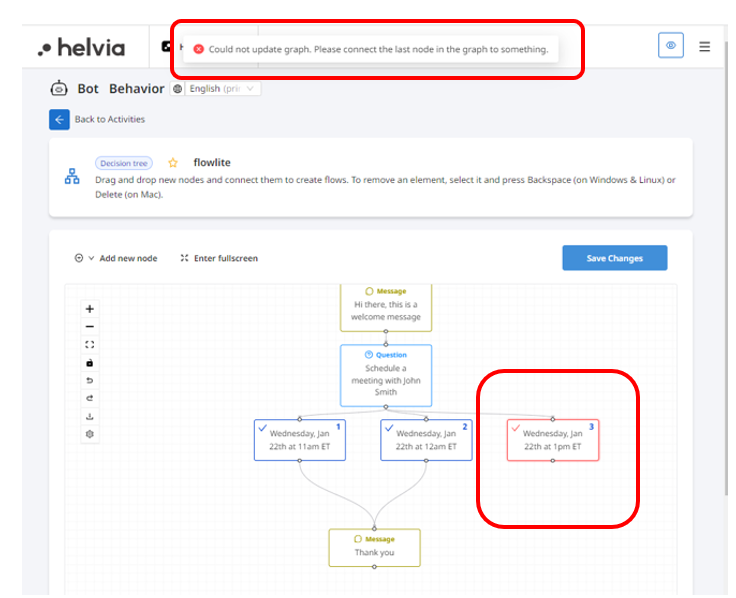
#### 1.5 Displaying detailed error messages in the flow editor
When saving a flow that contains errors, a more descriptive error message will be displayed, and the nodes that have issues will be highlighted. This will enable the editor to easily find and rectify the issue.
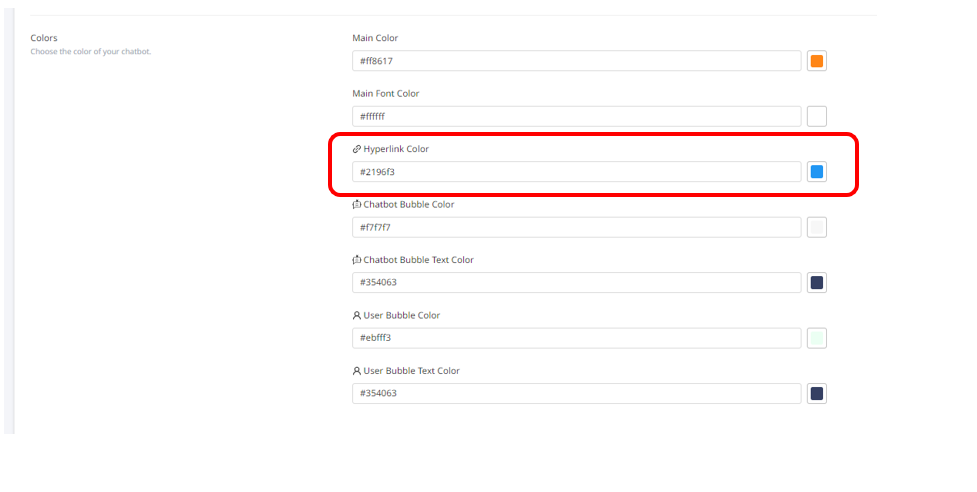
#### 1.6 Hyperlink color configuration via console deployment settings
The webchat hyperlink color can now be configured through the webchat settings of a deployment.
To edit the hyperlink color of a specific deployment, go to the deployment's 'Colors' section and edit the 'Hyperlink Color'.
#### 1.7 Redesign of bot Backups tab
The bot Backups tab has been redesigned to include a search bar.
#### 1.8 Pre-fill user input text
A new feature is enabled that allows loading the webchat with a pre-filled user input text. The end-user will be able to either click on the 'Send' button in order to send the pre-filled value, or edit the text and send it, or use a button in case the entry point has button(s).

This can be enabled in consultation with the Helvia team.
### **2. LiveChat Updates**
#### 2.1 'Quick replies' renamed as 'Canned responses'
The 'Quick replies' are now available as 'Canned responses' for better UX.
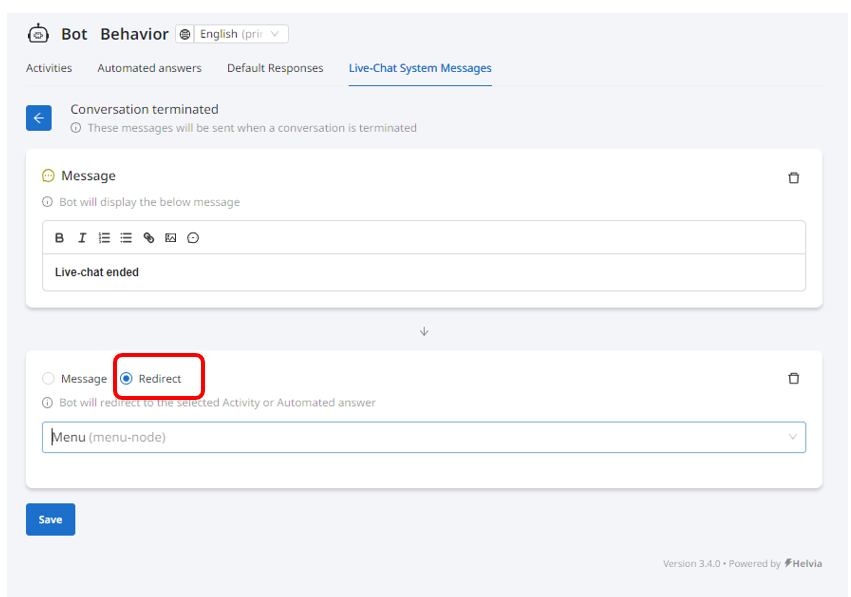
#### 2.2 Option to add redirect nodes after LiveChat system messages
Redirect nodes can now be added after the following system messages:
* Conversation terminated
* Live-chat disabled
* Out of business hours
* Request missed
---
# Agent Instructions: Querying This Documentation
If you need additional information that is not directly available in this page, you can query the documentation dynamically by asking a question.
Perform an HTTP GET request on the current page URL with the `ask` query parameter:
```
GET https://docs.helvia.ai/resources/release-notes/2023/helvia-release-5.26.0.md?ask=
```
The question should be specific, self-contained, and written in natural language.
The response will contain a direct answer to the question and relevant excerpts and sources from the documentation.
Use this mechanism when the answer is not explicitly present in the current page, you need clarification or additional context, or you want to retrieve related documentation sections.